
Whether you just unboxed a vSeeBox V5 Pro, V6 Plus, V6 Pro, or V6 Max, the vSeeBox remote control is your everyday companion for getting the most out of your Android TV box. In this complete vSeeBox remote control user guide, we map out every button on the remote, show you how to pair it in minutes, explore the three standout features — voice input, mouse mode, and one-touch app access — and answer the most common questions. By the end, you'll be using your vSeeBox remote like a pro.
Why Choose the vSeeBox Remote Control?
Most traditional remotes overwhelm you with dozens of rarely-used buttons. The vSeeBox remote keeps only what you need, groups controls into intuitive zones, and adds features that make everyday use genuinely easier.
A Simpler Alternative to Traditional Remotes
- Fewer buttons, faster navigation — a clean layout means less hunting for the right key.
- Functional zoning — buttons are grouped by task, so power, volume, navigation, and app shortcuts each live in their own area.
- First-day usability — most users can change inputs and adjust volume on their very first try.
Built-in Backlight for Low-Light Viewing
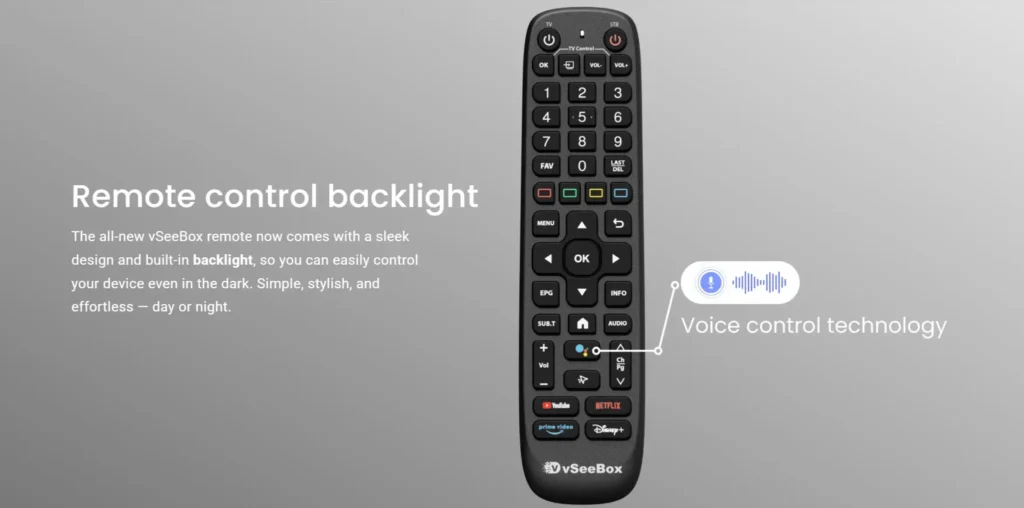
The all-new vSeeBox remote comes with a sleek design and a built-in backlight, so you can easily control your device even in a dark room. Simple, stylish, and effortless — day or night.
Voice Control Built In
A dedicated voice input key puts hands-free control at your fingertips. Press, speak, and the vSeeBox responds — no need to hunt through on-screen menus.
vSeeBox Remote Control Button Overview
Here is a complete map of the vSeeBox remote control layout. The keys are divided into five functional areas.
Top Function Area: Core Control Center
- Power Button — short press turns the TV box on or off; long press powers off the TV and connected devices together.
- Input / Signal Switching — switch between HDMI, AV, and other input sources.
- Volume Adjustment — VOL+ and VOL− control the volume directly.
- Mouse Mode Toggle — switch between normal navigation and pointer-style mouse control.
Numeric Key Area: Quick Input
- Number Keys (0–9) — for direct program-number input and quick entry.
- LAST Key — return to the last program or app you were using.
- FAV Key — open your favorites list, or long-press to add the current item.
Center Navigation Area: Menu Operations
- Directional Pad — move through menus and lists.
- OK Button — confirm your selection.
- EPG Button — view the on-screen program schedule and filters.
- Menu Button — open settings and options.
- Back & Info Buttons — go back one step, or view playback details.
Function Key Area: High-Frequency Actions
- Voice Input — long-press to speak commands.
- Volume, Mute, and Channel Up/Down Keys — the controls you reach for most.
- Home Button — return to the TV box home screen instantly.
Shortcut App Area: One-Touch App Access
- YouTube — opens the YouTube app with a single press.
- Prime Video — jumps straight to your picks.
- Netflix & Disney+ — launches these apps directly, no menu digging required.
Three Standout Features of the vSeeBox Remote
One-Touch Direct App Access
Direct app access dramatically cuts the number of steps compared to traditional arrow-key navigation. Instead of scrolling through screens, one press on a shortcut key takes you exactly where you want to go.
Voice Input
The voice key supports everyday commands for playback and device control. For the best recognition, speak clearly and close to the remote's microphone. Common commands include "Play", "Pause", "Volume up", "Volume down", "Mute", and "Open YouTube".
Mouse Mode
Mouse mode turns the remote into a pointer. Swipe and click like you would with a computer mouse, which makes precise selections — and tasks like text entry — much easier than pressing arrow keys repeatedly.
How to Pair and Set Up Your vSeeBox Remote
Pairing via Bluetooth
- Turn on your vSeeBox TV box and go to Settings.
- Open Remote Control Management and select Pair New Remote.
- Press and hold the OK and Home buttons on the remote for about 3 seconds.
- When the remote appears on screen, confirm the pairing. Done — the remote is ready to use.
Enable Voice Commands
After pairing, make sure voice input is enabled in Settings → Voice. Then press and hold the voice key and speak your command.
Troubleshooting Common Issues
- Remote not responding — check the batteries, then re-pair the remote following the steps above.
- Voice commands not working — check the microphone, re-pair the remote, and make sure the system is up to date.
- Shortcut button opens the wrong app — go to Settings → Remote Control Management → Re-bind Apps and assign the correct app.
vSeeBox Remote Control Compatibility
The vSeeBox remote works with all current vSeeBox models, including the vSeeBox V5 Pro, V6 Plus, V6 Pro, and V6 Max. It pairs over Bluetooth 5.0, and the power and volume keys also control your TV, so one remote can replace the clutter of several.
Advanced Tips: From Beginner to Expert
Manage Favorites and Shortcuts
Build a personal favorites list and sort your entries for quicker access. Long-press the FAV key to add the current item, and use the menu to arrange the order.
Battery Life and Replacement
The vSeeBox remote typically runs for 6 to 12 months on a standard set of batteries. When the response becomes slow or the backlight dims, replace the batteries and the remote will feel new again.
Care and Maintenance
Keep the remote clean with a soft, dry cloth. Avoid liquids and extreme heat, and store it away from direct sunlight when not in use.
Upgrade Your TV Experience Today
Don't wait — bring home the vSeeBox and enjoy a simpler, smarter TV experience. Every vSeeBox TV box ships with the vSeeBox remote control in the box.
- Free one-year warranty included.
- 14-day hassle-free returns.
- Responsive technical support whenever you need it.
Which vSeeBox devices is the remote compatible with?
The vSeeBox remote works with all current models: vSeeBox V5 Pro, V6 Plus, V6 Pro, and V6 Max.
How do I pair the remote with my vSeeBox TV box?
Go to Settings > Remote Control Management > Pair New Remote, then press and hold the OK and Home buttons for about 3 seconds until the remote appears on screen.
How long does the remote battery last?
Under normal use, the battery lasts roughly 6 to 12 months. Replace the batteries when response becomes sluggish.
What if voice commands don't work?
Check the microphone, re-pair the remote, and confirm your system is updated to the latest version. Make sure voice input is enabled in Settings.
How do I fix a shortcut button that doesn't respond?
Open Settings > Remote Control Management > Re-bind Apps and reassign the correct app to the shortcut key.
Does the remote work with non-vSeeBox TVs?
The remote is designed for vSeeBox TV boxes. Power and volume keys can also control many TVs through the HDMI connection, but for full functionality we recommend using it with a vSeeBox device.
What is mouse mode and how do I turn it on?
Mouse mode turns the remote into a pointer so you can swipe and click like a computer mouse. Toggle it with the mouse mode key on the remote.