

Has your vSeeBox TV box ever frozen on the boot screen, stopped responding, or gotten stuck right after a firmware upgrade? Don't worry — a vSeeBox system recovery is usually all it takes to get your device back to normal. In this guide, we walk you through the complete vSeeBox system recovery process step by step: what to prepare, how to enter Android Recovery, how to perform a factory reset, and what to do if the reset itself gets stuck. This works for the vSeeBox V5 Pro, V6 Plus, V6 Pro, and V6 Max.
When Do You Need a vSeeBox System Recovery?
Not every glitch needs a full reset. A system recovery is the right fix in three common situations.
Device Stuck on the Boot Screen
After a firmware upgrade or a power interruption, the device can stay on the boot logo without moving past it. A vSeeBox system recovery clears the faulty state and lets the device boot normally again.
Freezing or Unresponsive Interface
If the home screen freezes, buttons stop responding, or programs keep crashing, a factory reset restores a clean, stable system in a few minutes.
After a Failed Firmware Update
If an update was interrupted or incomplete, parts of the system may be partially installed. Recovery mode lets you wipe the data and start fresh from a clean state.
What You Need Before You Start
Preparation Checklist
- Your vSeeBox device
- An HDMI cable
- The power supply
- A pin or paperclip (to press the reset button)
Where to Find the Reset Hole
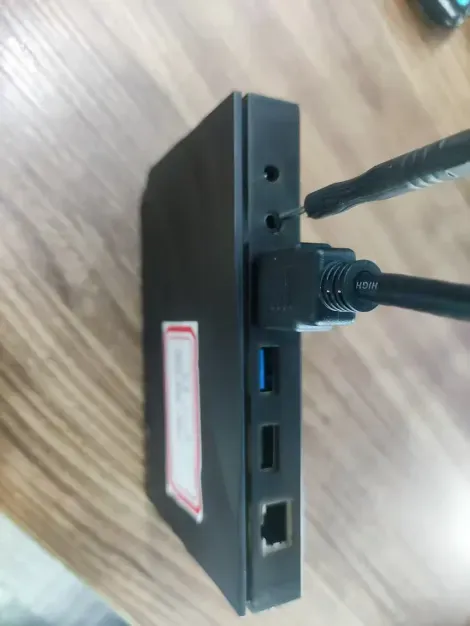
The reset button is a small pinhole on the back of the device, next to the AV interface. An unfolded paperclip works perfectly — no special tool is needed.
Important Notes Before You Reset
What a Factory Reset Erases
A factory reset restores the device to its original out-of-the-box state. This clears your personal settings, installed programs, and signed-in accounts. Nothing on the hardware itself is damaged — recovery simply gives you a clean, fresh system to start from.
Have Your Setup Details Handy
After the reset, you will need to set up the device again: connect to your WiFi network, sign back into your accounts, and reinstall any programs you want. Having your WiFi password and account details ready makes the re-setup quick and painless.
How to Reset Your vSeeBox: Step by Step
Step 1 — Connect the HDMI Cable
Connect your vSeeBox to the TV with the HDMI cable so you can see the recovery screen clearly.
Step 2 — Press and Hold the Reset Button
Use the pin to press and hold the reset button on the AV interface. Keep holding it throughout the next step.
Step 3 — Connect the Power Supply
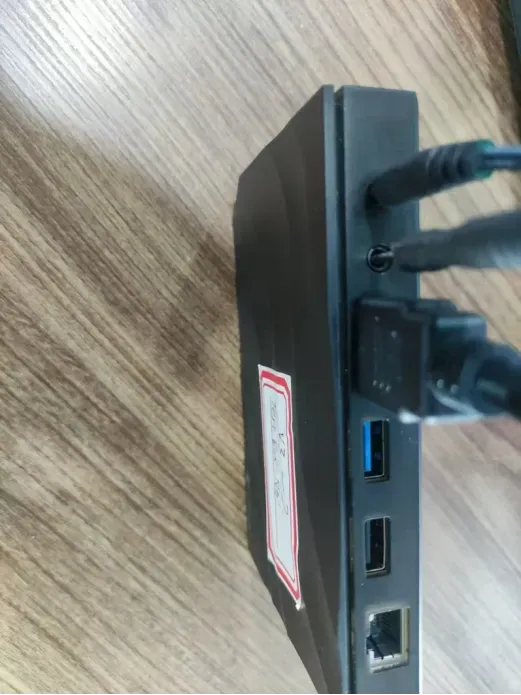
While still holding the reset button, connect the power supply to the device.
Step 4 — Release When the Boot Logo Appears
When the screen shows the boot logo (the first frame), release the pin and wait about twenty seconds. The device enters Android Recovery. If it gets stuck here, unplug the power and start the process over.
Step 5 — Enter Android Recovery
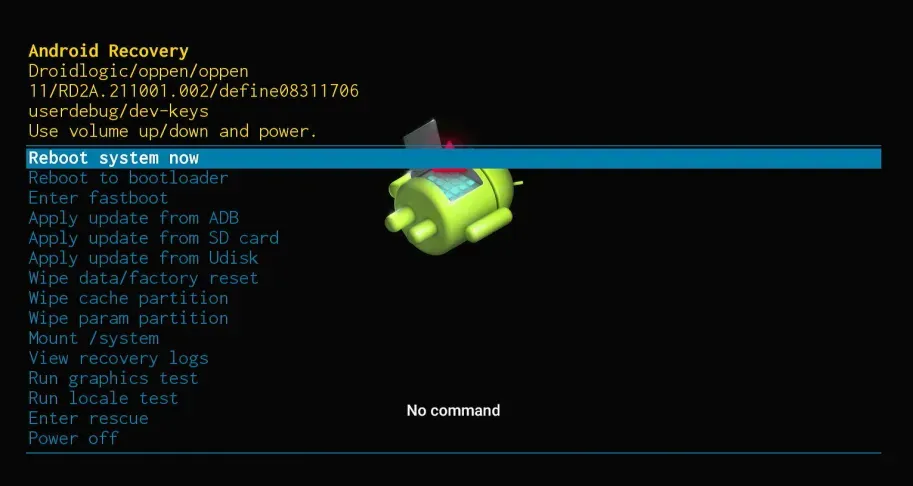
Once the device enters Android Recovery, you can use the remote or the navigation keys to move through the menu.
Step 6 — Select Wipe Data / Factory Reset
Choose Wipe data/factory reset, then select Factory data reset. The device will enter the data-clearing state and remove all user data.
Step 7 — Reboot the System
When the reset is complete, the device returns to Android Recovery. Select Reboot system now. The box will restart. If it gets stuck during the boot process, unplug and reconnect the power to restart the box.
What to Do If the Reset Gets Stuck
Unplug and Start Over
If the device gets stuck at any point, unplug the power, wait a few seconds, then repeat the steps above. Recovery is designed to be repeatable, so a second attempt usually works.
Check the HDMI Connection
If you don't see the recovery screen at all, try a different HDMI port or cable, and make sure the TV is set to the correct input. A loose or faulty HDMI connection is a common reason the screen appears black during recovery.
Give the Reset Button a Firm Press
Make sure the pin is pressing the reset button firmly and continuously while you connect the power. Releasing it too early can prevent the device from entering recovery mode. If needed, try a sturdier pin or paperclip.
Contact vSeeBox Support
If recovery still fails after a few attempts, reach out to our support team — we'll help you troubleshoot step by step.
Upgrade Your vSeeBox Experience
Once your device is back to normal, make sure you're using the latest hardware. Explore our full lineup — vSeeBox V5 Pro, V6 Plus, V6 Pro, and V6 Max — all available at the vSeeBox USA store.