
vSeeBox Hardware FAQ: Setup, Connectivity, and Support
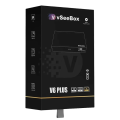
High‑performance hardware for your home media setup
Frequently Asked Questions
What is a vSeeBox?
vSeeBox is one of the best-selling Android TV boxes, designed for a complete home entertainment experience. Just plug it into your TV, connect via Wi-Fi or Ethernet, and enjoy a wide range of content through the built-in apps — all with no monthly fees.
Are there any additional fees or subscriptions required after purchasing the V6 Plus vSeeBox?
No, there are no additional fees after purchasing the vSeeBox. It **includes the Heat Apps suite ready to use**, giving you access to a wide range of content without any subscription costs.
Where can I use the vSeeBox?
The V6 Plus vSeeBox can be used anywhere in the world—Connect to Wi-Fi or Ethernet and enjoy!
Can I install my apps on vSeeBox?
Yes, absolutely. vSeeBox is fully compatible with the Google Android TV system. We recommend installing all official apps directly from the Google Play Store to ensure optimal performance.
For select third-party apps not available on the Play Store, you can access the Market section on the Home Page, where we’ve included a collection of commonly used apps for easy download and installation.
What internet speed is recommended for using V6 Plus vSeeBox?
For the best viewing experience, we recommend an internet speed of at least 15 Mbps. For optimal stability and performance, a wired Ethernet connection is preferred over Wi-Fi.
During video playback, you can adjust the picture quality as needed. For high-quality playback, a minimum of 15 Mbps is ideal, while 4K/UHD content in Heat Ultra performs best with 25 Mbps or higher.
Where can I purchase the V3 Plus vSeeBox?
You can purchase the V6 Plus vSeeBox directly from our official online store for a secure and hassle-free shopping experience. All orders are processed quickly, with fast and reliable shipping to ensure your device arrives promptly. Shop with confidence and start enjoying your V6 Plus vSeeBox in just a few days!
Is a warranty included with the product?
Our products are backed by a one-year warranty from the date of purchase. If you experience any hardware defects during this period, please contact us or your authorized distributor for a replacement or repair.
Please note: All warranties, replacements, and repairs require proof of purchase – and order number.
All 3rd party purchases MUST be handled by the distributor you purchased through.
Am I eligible for a refund?
Yes, we offer a 14-day money-back guarantee on unopened boxes. If your V6 Plus vSeeBox is unused and still in its original packaging, you may request a refund within 14 days of purchase.
Please note: All 3rd party purchases must be handled through the distributor or point of purchase.
How do I set up my vSeeBox V6 Plus?
Take a look at this Guide
How to install my apps on vSeeBox?
We recommend using the Google Play Store, as vSeeBox is fully compatible with the Android TV platform. You can easily download official apps such as Netflix, YouTube TV, Disney+, and many others directly from there.
For third-party apps not available on the Play Store, visit the vSee Market located on the Home Page. We’ve included a selection of commonly used apps for easy access and installation.
How to uninstall apps on vSeeBox?
On the 1st row of the Home Page, Settings, Apps, select the app(s) you want to uninstall, and click Uninstall.
How to update my vSeeBox?
vSeeBox supports Over-The-Air (OTA) updates to keep your device running smoothly and up to date. Simply go to the third row on the Home Page and select “Software Update.” From there, choose “Online Update” to check for and install the latest version if available.
How to reset my vSeeBox? Will factory reset erase my Heat Apps?
Performing a factory reset will erase all data and cached files on your vSeeBox. However, you can easily reinstall the Heat Apps after the reset is complete.
To reset your device:
Go to the 3rd row on the Home Screen > System Settings > Device Preferences > Reset > Erase Everything.
What should I do if the Heat apps are missing after setup?
First, please ensure your network connection is active. A quick way to verify is by opening YouTube TV and checking if videos play correctly.
If your network is connected but the Heat Apps are not appearing on the Home Screen, and you’re experiencing setup glitches, we recommend performing a factory reset.
To do this:
Navigate to the 3rd row on the Home Screen > System Settings > Device Preferences > Reset > Erase Everything.
How do I add titles to my favorites list?
When you select a title, you’ll see options for “Play,” “Info,” and “Favorite” before it begins. To save the title for later, simply click the “Favorite” button to add it to your Favorites list.
How to use the Search function?
To find specific content, use the Search function located on the left side of the main page. For example, if you’re looking for the movie Moonfall, you can simply search by typing “moon” or “fall”—partial keywords will still bring up the correct results.
To use voice search:
- Ensure your remote has a microphone button (usually marked with a mic icon).
- Press and hold the mic button on your remote.
- Speak clearly into the remote—for example:
- “Play Top Gun”
- “Open YouTube”
- “Find action movies”
- Release the button after speaking. The device will process your voice command and display the results.
Tip: Make sure your vSeeBox is connected to the internet and has microphone permissions enabled to use voice search effectively.
How to remove the network speed displayed in the top right corner?
The speed display can be turned on/off. By selecting “Menu” > “Settings”, and toggle on/off
Are there any 18+ or Adult content or Parental content?
Currently, vSeeBox does not provide any adult content according to regulations.
> What should I do if I see a 346 error code?
Currently, the Heat Live cannot be paused or stopped. We are developing the Time Shift feature and it will be available later.
What is the difference between Heat and Heat Ultra?
Heat Ultra is an upgraded version of Heat, providing more Ultra HD and 4K content. We recommend a network speed of over 40 Mbps for smooth 4K playback without buffering.
How do I search for a movie or TV series?
You can use the Search function on the left-hand side of the main page. For example, if you want to search for the movie “Moonfall”, you can search “moon” or “fall”.
How do I add a movie or TV series to my favorites?
When you select any title, there are “Play,” “Info,” and “Favorite” buttons on the page before you watch it. You can click the “Favorite” button to add it to your favorites.
How do I view my favorites list?
You can find Favorites at the top of the main page. To remove a favorite, hover over the movie or TV series and press the Menu button on your remote to remove it.
How can I change the picture quality?
Some titles have different quality versions for you to choose from. You can adjust according to your network environment. Press the Menu button on your remote during playback, then in Quality choose High / Normal / Low — the highest quality can go up to 4K.
How to update my vSeeBox?
vSeeBox supports Over-The-Air updates to keep your device updated. On the 3rd row of the Home Page, select the Software update. You can check if any new updates with Online Update.
How do I turn subtitles on or off?
Some titles have subtitles in different languages for you to choose from. Press the Menu button on your remote during playback, then in Subtitles choose None (to turn subtitles off) or a subtitle language.
How do I change the audio track language?
Some titles have different audio track languages to choose from. Press the Menu button on your remote during playback, then in Track choose English, Español, and more according to availability.
A movie/tv shows I'm watching often buffers. Why?
At times, buffering can happen due to high traffic or slow internet speeds. If buffering persists, try holding the “Pause” button for up to 15 seconds before resuming — this often resolves it.
You can also use the picture quality selection. Adjust it according to your network environment: press the Menu button on your remote during playback, then in Quality choose High / Normal / Low — the highest quality can go up to 4K.
Why does my network show "Remembered" instead of "Connected"?
If your network shows “Remembered” but not “Connected”, it usually means the Wi-Fi password is incorrect. To reconnect, go to the 3rd row of the home screen > System Settings > Network, select your Wi-Fi network, choose Forget Network, and reconnect with the correct password.
Shut down / sleeping mode – which shall I choose?
We suggest shutting it down (power off) if you are not using it. It will release the internal storage and make the box work more smoothly with next usage.
The sleeping mode is for a short period of not using it. The tv box would not be turned off completely for a faster wake-up time.